 Animal Rigger Pro
4. Weights
Fix the skin by hand where the automatic weights need help. Paint, test poses, quick fixes.
The automatic weights get most of the skin right. This page is for the rest, and it is quick: pick a bone, paint, and watch the animal bend while you paint.
Weights you paint here are kept when you rebuild the rig.
Paint
Press Paint weights. The animal goes into Weight Paint mode with its deform bones showing. If you had a control selected, you start on the skin that control moves.
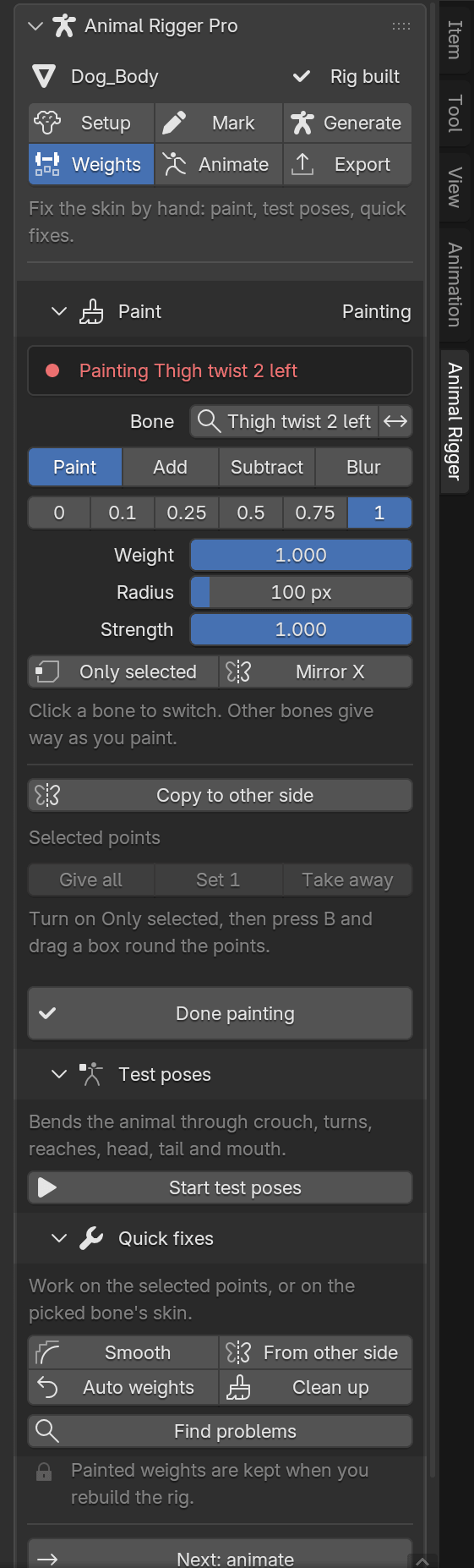
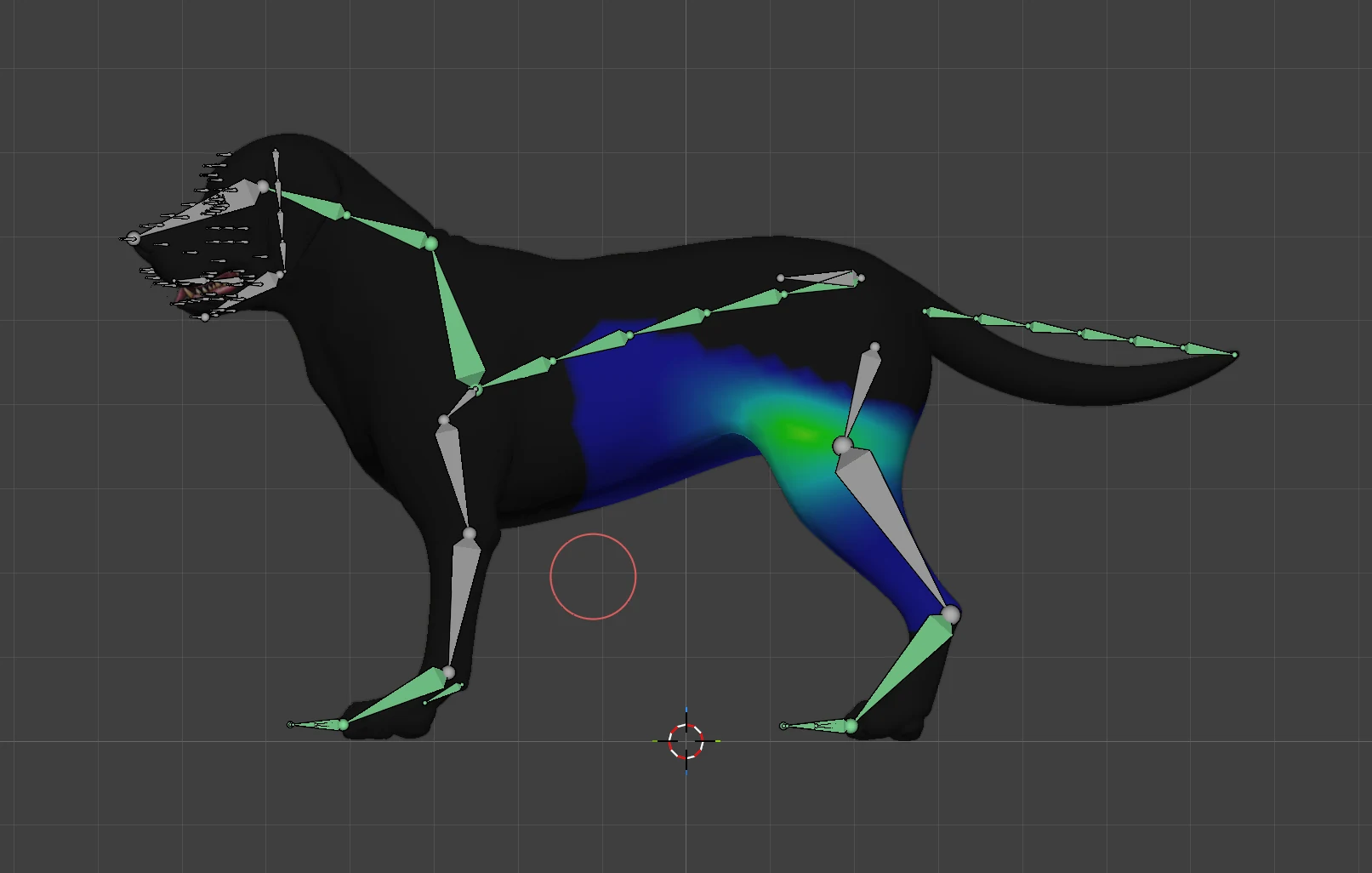
- Bone. Click a bone in the viewport, or press the bone button and type to search. The ⇄ button next to it jumps to the same bone on the other side.
- Paint, Add, Subtract, Blur. The four brushes. Paint sets the weight; Add and Subtract push it up or down; Blur smooths it.
- 0, 0.1, 0.25, 0.5, 0.75, 1. One click sets the brush weight.
- Weight, Radius, Strength. The brush's usual settings.
- Only selected paints only the points you selected. Mirror X paints both sides at once.
Other bones give way as you paint, so the weights on each point still add up to one.
Copy to other side
Painted one side? Copy to other side makes the other side's bone match: its twin gets a mirror copy of what you painted.
Exact weights on selected points
For an exact number on a few points:
Turn on Only selected.
Press B and drag a box round the points.
Press Give all (weight 1), Set (the brush weight) or Take away (weight 0).
Press Done painting to leave Weight Paint and show the controls again.
Test poses
Press Start test poses. The rig plays a short set of poses on the timeline while you paint:
| Frame | Pose |
|---|---|
| 1 | Rest |
| 10 | Crouch |
| 20, 30 | Turn left, turn right |
| 40, 50 | Reach with the left front leg, the right front leg |
| 60, 70 | Head down, head up |
| 80 | Tail swing |
| 90 | Mouth open and blink |
Scrub the timeline to bend the animal and look for creases. The page names the pose you are on.
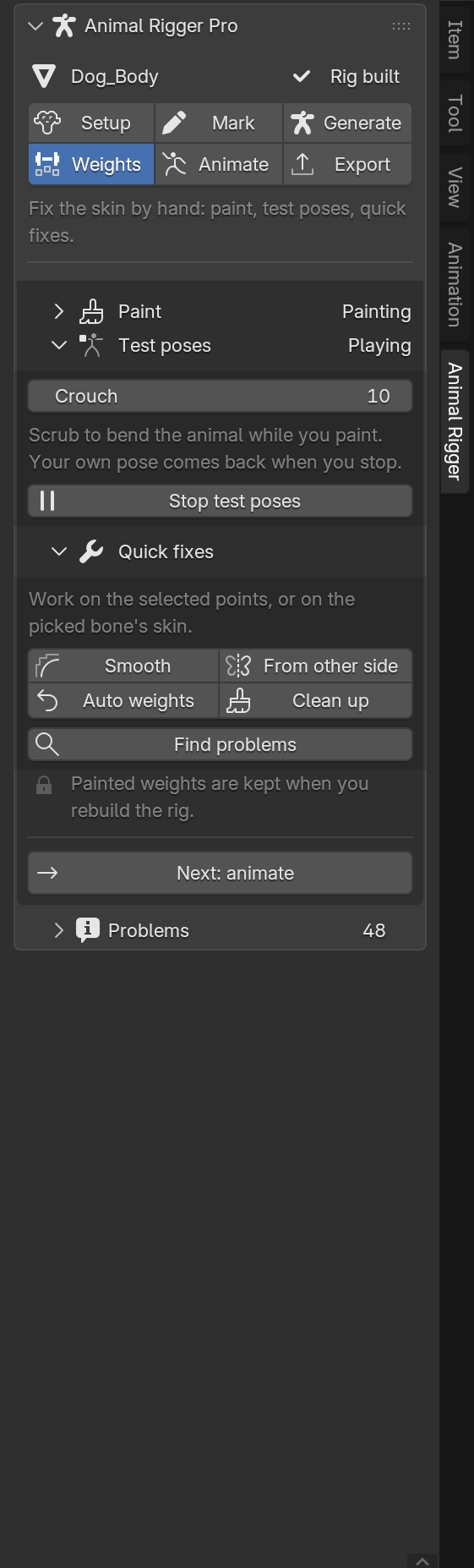
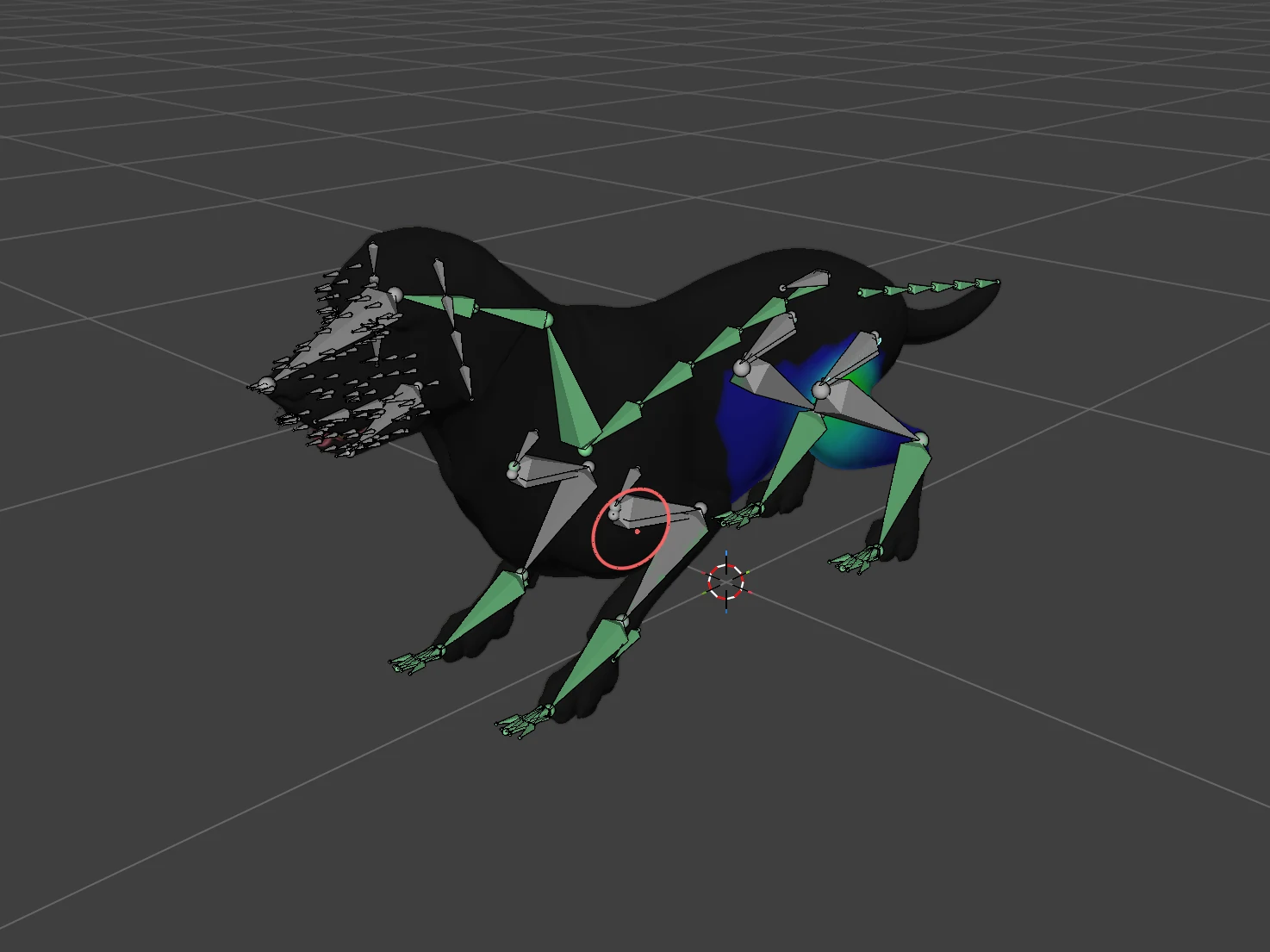
Press Stop test poses when you are done. Your own animation and pose come back.
Quick fixes
Each fix works on the selected points, or on the picked bone's skin when nothing is selected.
| Button | What it does |
|---|---|
| Smooth | Blends the weights with their neighbours, to soften a crease or a bump. |
| From other side | Gives the points the weights of their twins across the body. |
| Auto weights | Puts the rig's own automatic weights back on these points. |
| Clean up | Drops tiny weights, keeps the eight strongest bones on each point, and makes them add up to one. |
| Find problems | Selects the points whose weights look wrong, and says why. |
Find problems looks for points that:
- no bone moves, so they stay behind when the animal walks,
- have weights that do not add up to one, so they drift as the pose changes,
- are moved by more than eight bones, which a game engine would cut down,
- are moved by a bone on the wrong side, such as a left leg pulling right-side skin,
- are moved by a bone much farther away than the nearest one, such as a back leg pulling the chest.
More on painting in Weight painting.
Press Next: animate.