 Animal Rigger Pro
Face
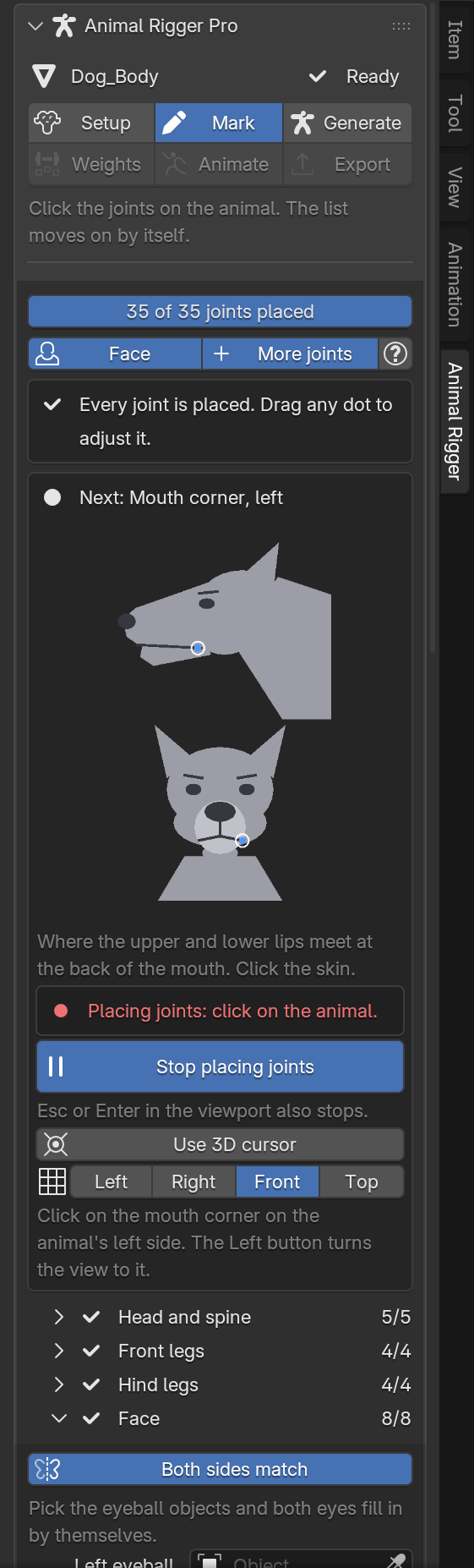
Mark the face, pick the face parts, and turn on the face features you want.
The face is optional. A rig without it still has a head, neck and ears that pose. Turn it on for a jaw that opens, eyes that aim and blink, lips that snarl, and a tongue.
1. Mark the face
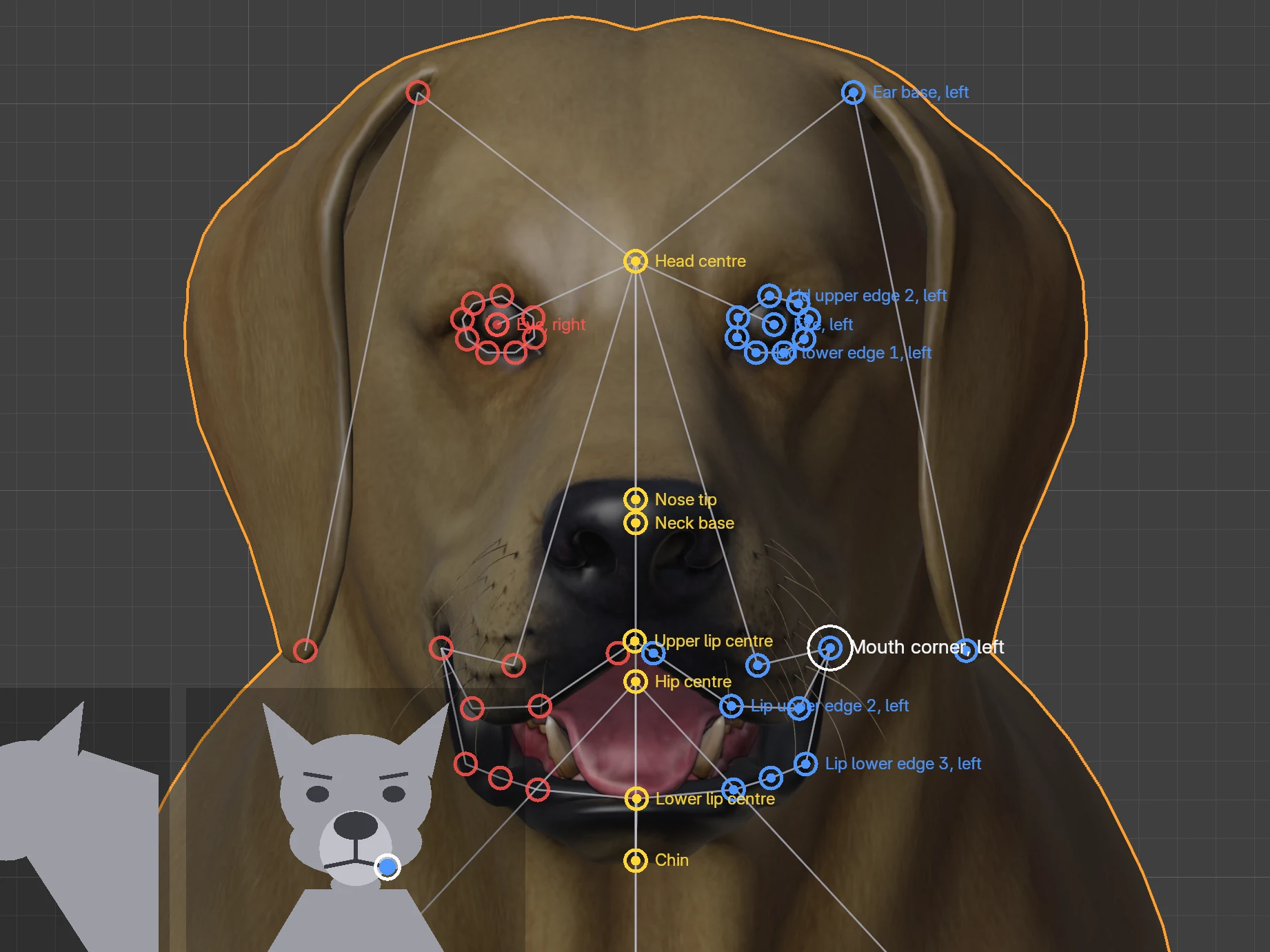
On Mark, press Face at the top. The face groups join the list:
| Group | What you mark |
|---|---|
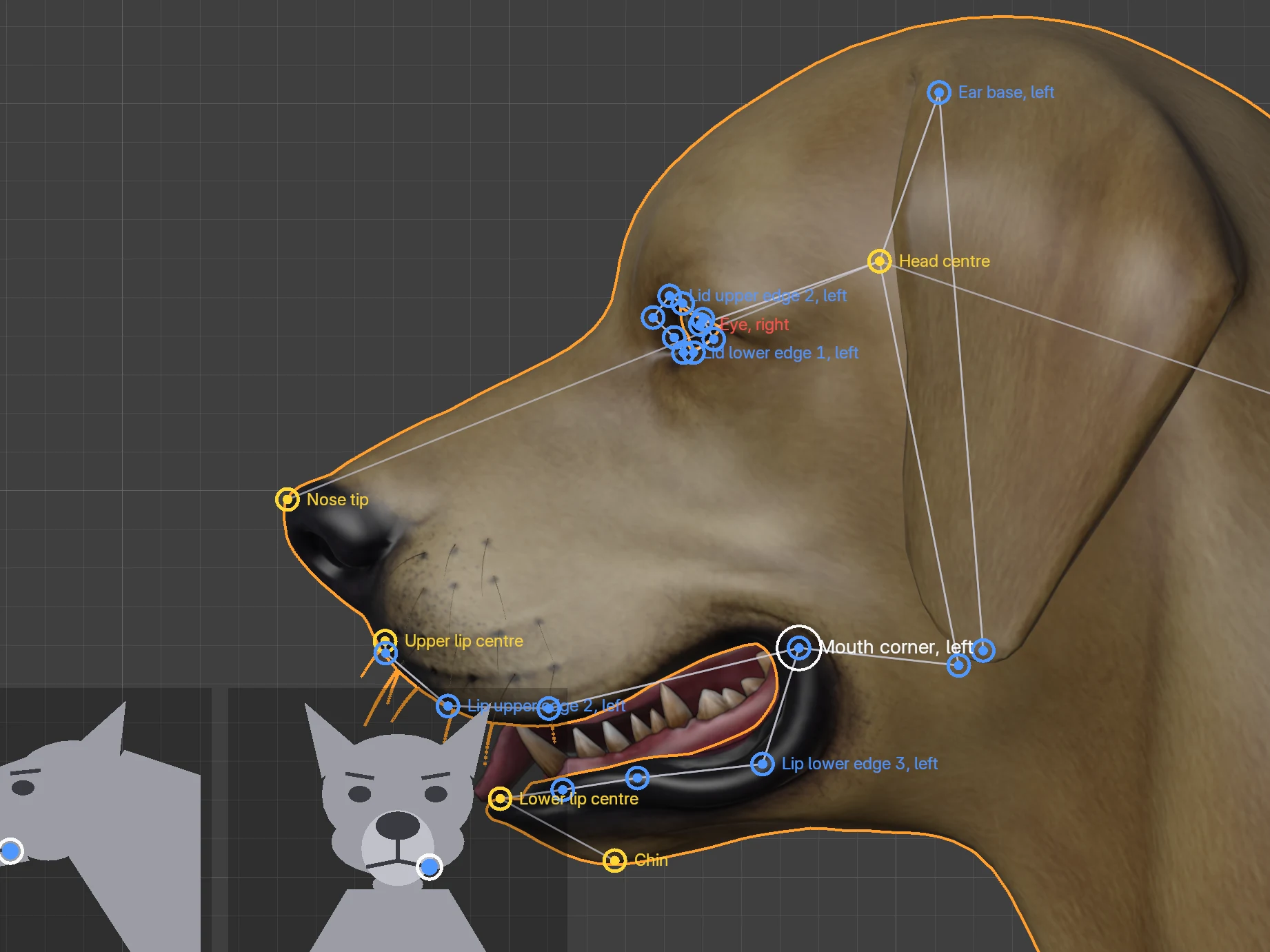
| Face | Eyes, ear bases and tips, jaw hinge, chin, mouth corners, and the centres of the upper and lower lip. |
| Brows | The inner and outer end of each brow. Optional. |
| Lip edges | Three points along each lip, from the centre to the corner. Needed for Lips. |
| Eyelid edges | The two eye corners and three points along each lid, from inner to outer. Needed for Eyelids. |
Face marks sit on the skin, so click the part itself. Any view angle works; Front and the side views help. A click on the wrong side is turned round while Both sides match is on, so a left ear mark always lands on the left ear.
The eyes need no clicks
If the eyeballs are separate objects, pick them in the Face group as Left eyeball and Right eyeball, or press Find the eyeballs by name. Both eye joints fill in from the eyeballs' centres, which is more exact than any click.
2. Pick the face parts
On Generate, open Face parts. Pick the separate objects: Upper jaw, Lower jaw, Upper teeth, Lower teeth, Tongue and Whiskers. Find by name fills the slots from object names such as Tongue or Teeth_Upper. Leave a slot empty if there is no such part.
If the teeth, gums or eyes are inside the body mesh, press Suggest from the marks. It tags them from where the face marks are, for you to check. To tag by hand, go into Edit Mode, select a point on each piece, and press its button: Upper jaw, Lower jaw, Tongue, Eye or Whiskers.
3. Turn on the face features
On Generate, open Rig features and turn on what you want under Face: Jaw, Ears, Eyes, Eyelids, Muzzle, Lips, Tongue and Face details. Then build or rebuild.
The face controls
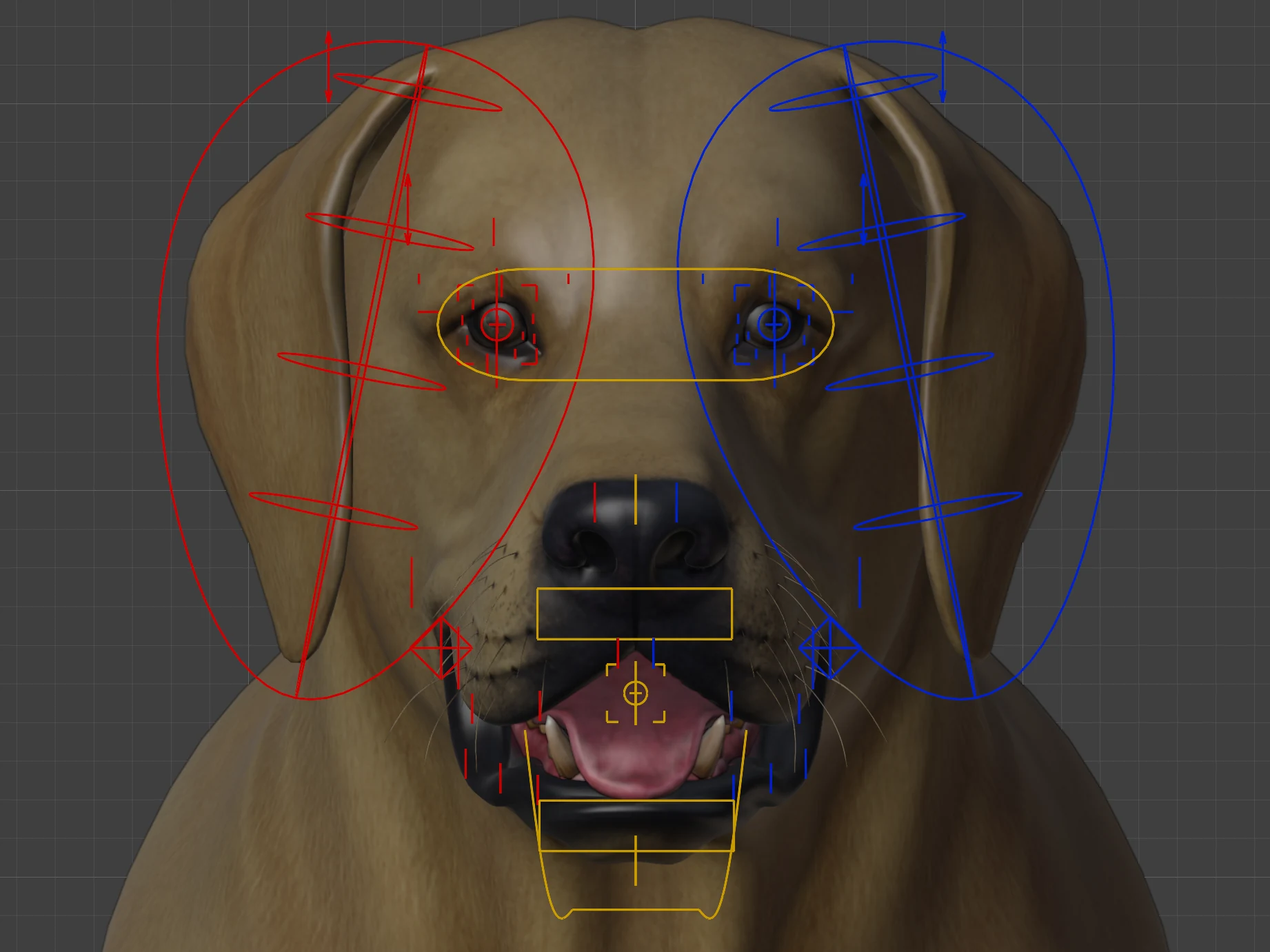
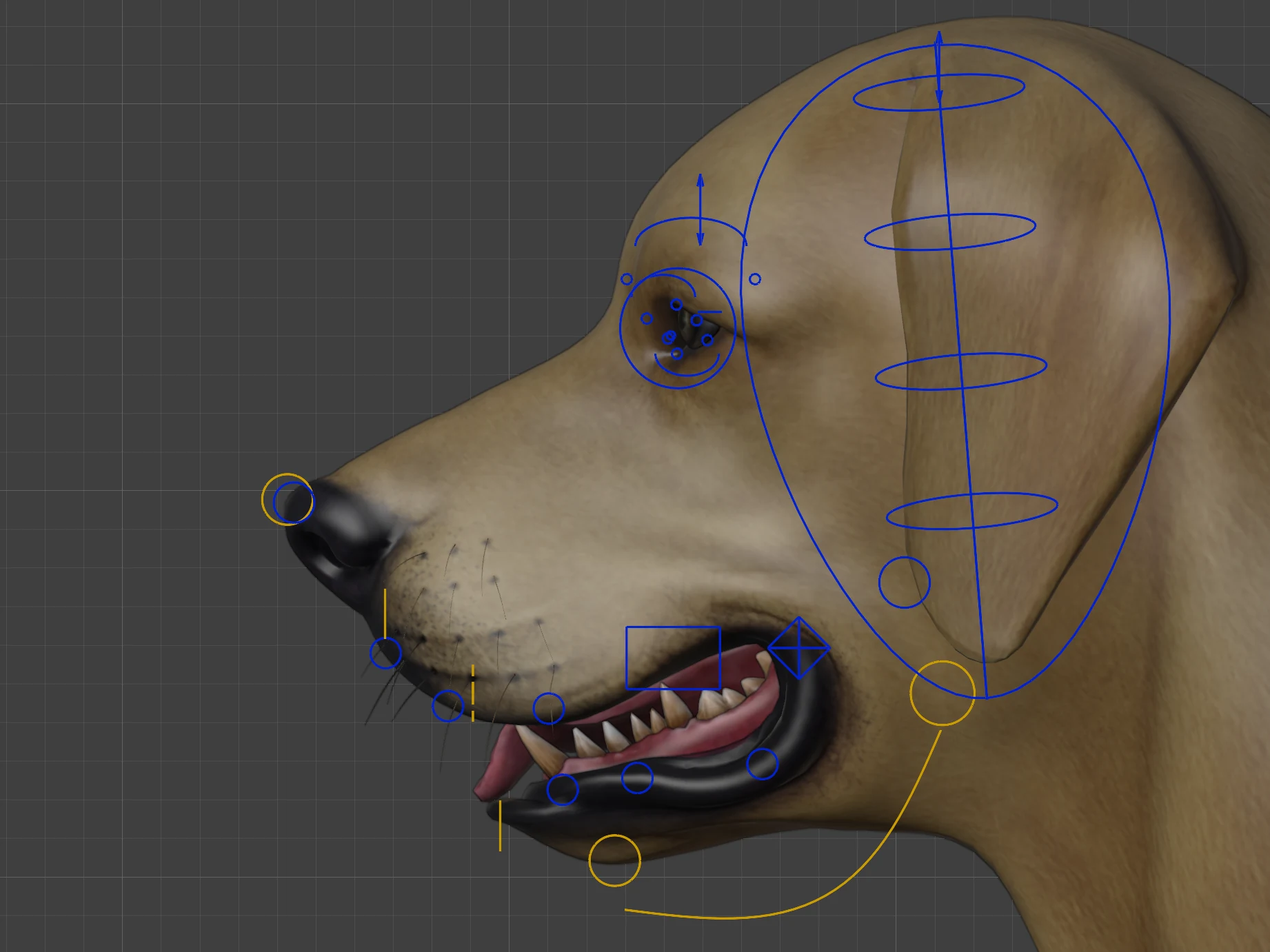
Show them with Face under Show controls on Animate. Select one and its sliders appear under The selected control:
| Control | Sliders |
|---|---|
| Jaw | Open, Side to side |
| Eyelids (one per eye) | Blink, Lid follow (the lids follow the eye), Detach, Third lid |
| Ears | Fold |
| Upper and lower lip | Snarl, Flew (the loose hanging upper lip) |
| Brows | Raise, Furrow |
Face details adds many small controls over the face (75 on this dog), each nudging a patch of skin. They are hidden at first: Show all on Animate shows them, or turn on Face Details in Blender's Bone Collections list.
Check the mouth with Inspect this pose on Generate under More skin tools: it reports stretched skin and teeth poking through the lips in the current pose.