 Animal Rigger Pro
3. Generate
Build the rig, choose what it carries, and bind the skin.
Generate is one button, with what goes into the rig folded away below it.
Is it ready?
The banner at the top answers that first:
- Ready to build: press Generate rig.
- Fix … before building: the list under it says what, in words. The build button stays grey until it is fixed.
- The marks changed. Rebuild to update the rig: you edited marks after building.
- The rig is up to date: nothing to do.
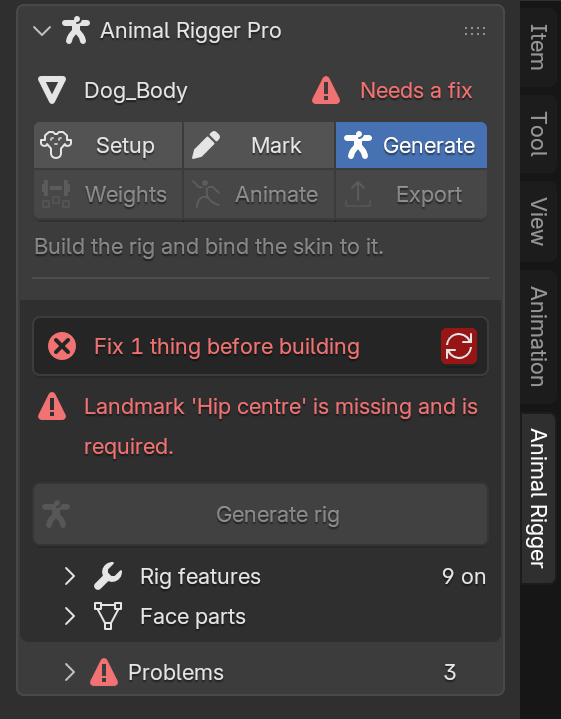
The small circling-arrows button on the banner checks again.
Build
Press Generate rig. The rig is built and the skin bound in one go, usually in a few seconds. A dog with its whole face is about a thousand bones and still takes only a few seconds.
If a build fails, your scene is left as it was, and the page says what went wrong.
Rig features
Open Rig features to choose what the rig carries. Turn a feature on or off, then build or rebuild.
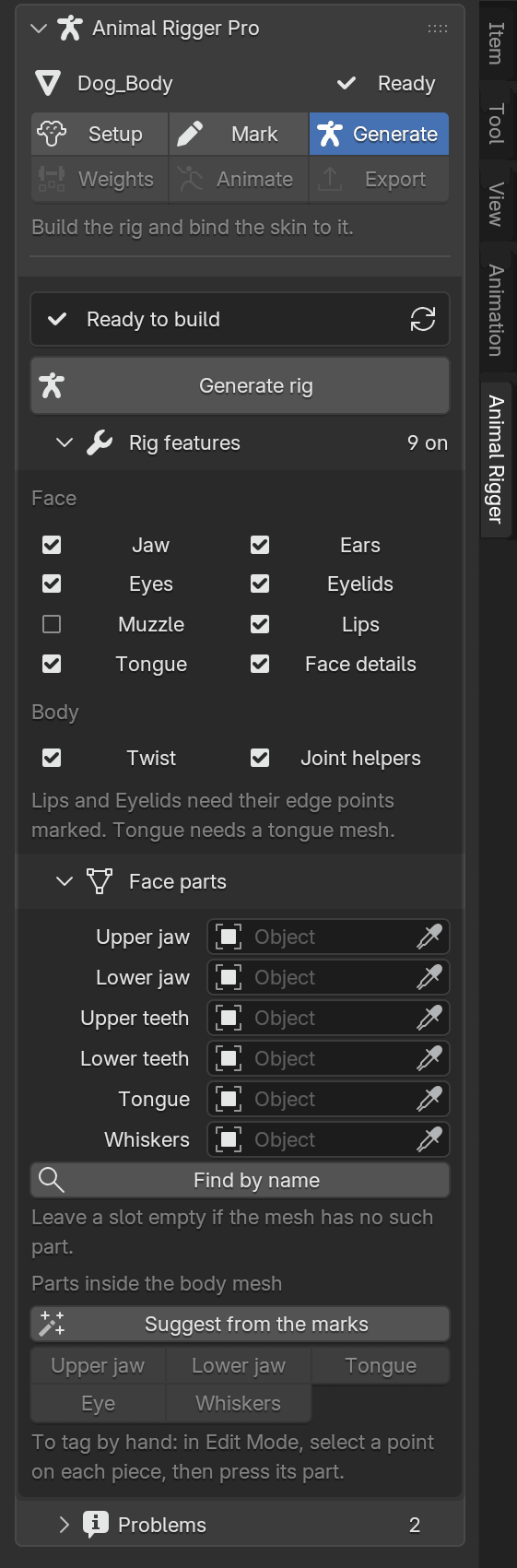
| Feature | What it adds |
|---|---|
| Jaw | A jaw that opens and shifts. |
| Ears | Ears that turn and fold. |
| Eyes | Eyes that aim, alone or together. |
| Eyelids | Eyelids that blink and follow the eyes. Needs the eyelid edge points marked. |
| Muzzle | One control that moves the whole muzzle. |
| Lips | Lips, mouth corners, snarl and brows. Needs the lip edge points marked. |
| Tongue | A tongue chain. Needs a tongue mesh. |
| Face details | Many small controls over the face, hidden until shown. |
| Twist | Bendy bones along the body and legs, so twists spread smoothly. |
| Joint helpers | Helper bones that keep the shoulders and hips full when they bend. |
The face features are off until you turn them on. The Face guide covers them.
Face parts
If the eyes, jaw, teeth, tongue or whiskers are separate objects, pick them under Face parts so they move with the rig. Find by name fills the slots from object names. Leave a slot empty if the animal has no such part.
If those parts are inside the body mesh instead, use Suggest from the marks, or tag them by hand: in Edit Mode, select a point on each piece and press its part's button.
After the build
The top button becomes Rebuild rig, with Preview changes and Undo last build beside it.
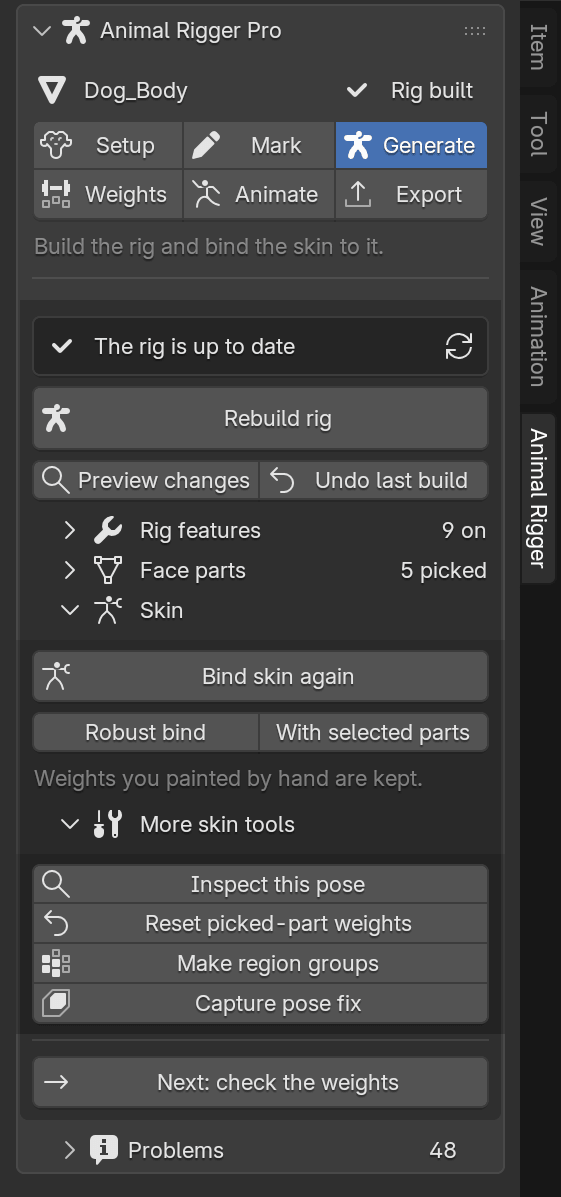
- Preview changes lists what a rebuild would add, update, rename and remove, without building.
- Undo last build puts back the last rig that worked.
See Rebuild for what a rebuild keeps.
Skin
The skin is bound when you build. The Skin section is for binding again:
- Bind skin again redoes the automatic weights. Weights you painted by hand are kept.
- Robust bind uses a slower method that copes with legs that touch, pieces that overlap and meshes that are not closed.
- With selected parts binds the selected objects too, such as a collar or separate fur.
More skin tools:
- Inspect this pose reports stretched skin and teeth poking through the lips in the current pose. It changes nothing.
- Reset picked-part weights throws away hand edits on the picked face parts only.
- Make region groups makes empty vertex groups for the face regions, to fill in yourself.
- Capture pose fix saves a reviewed shape as a fix that plays when a control reaches this pose.
Press Next: check the weights.