 Animal Rigger Pro
5. Animate
Show, pick and pose the controls, switch legs between IK and FK, and plant feet on the ground.
Select the rig and go into Pose Mode. The Animate page shows what the selected control does and holds the tools that go with posing.
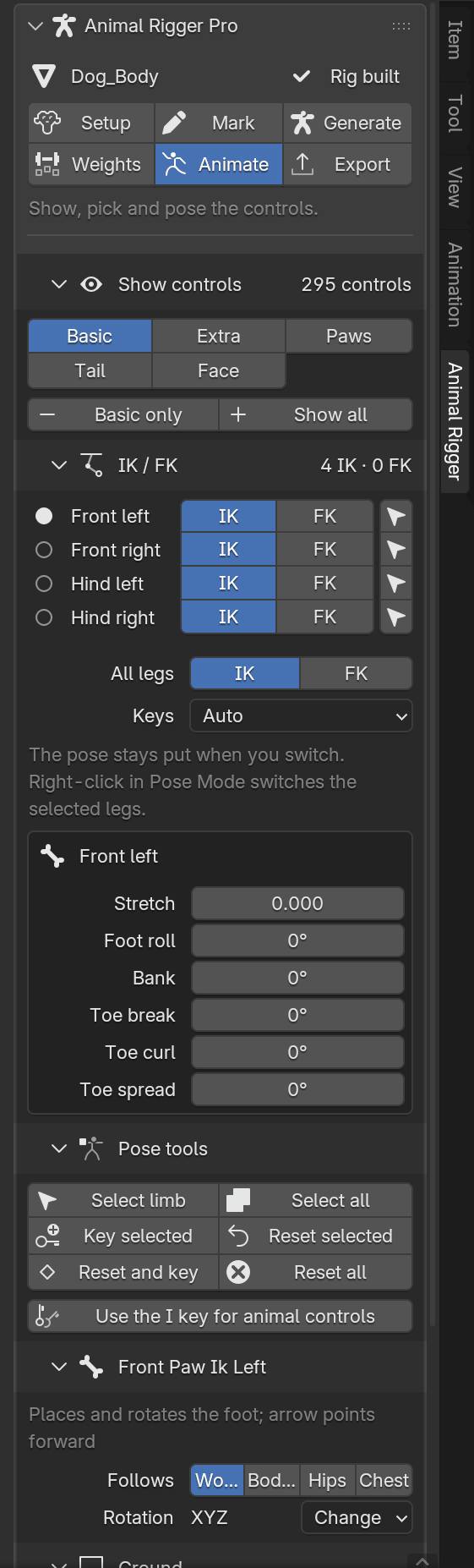
Show controls
The controls come in sets, so the view is not crowded:
| Button | What it shows |
|---|---|
| Basic | The main controls: master, root, body, hips, chest, head, tail and the four feet. |
| Extra | The spine and neck in parts, the shoulder blades, the FK leg bones and the knee and elbow aim targets. |
| Paws | The foot pivots (heel, pad, toe, the two sides, the toe break) and each toe. |
| Tail | Each part of the tail after the first. |
| Face | The face controls, if the rig has a face. |
Basic only hides the rest. Show all shows everything.
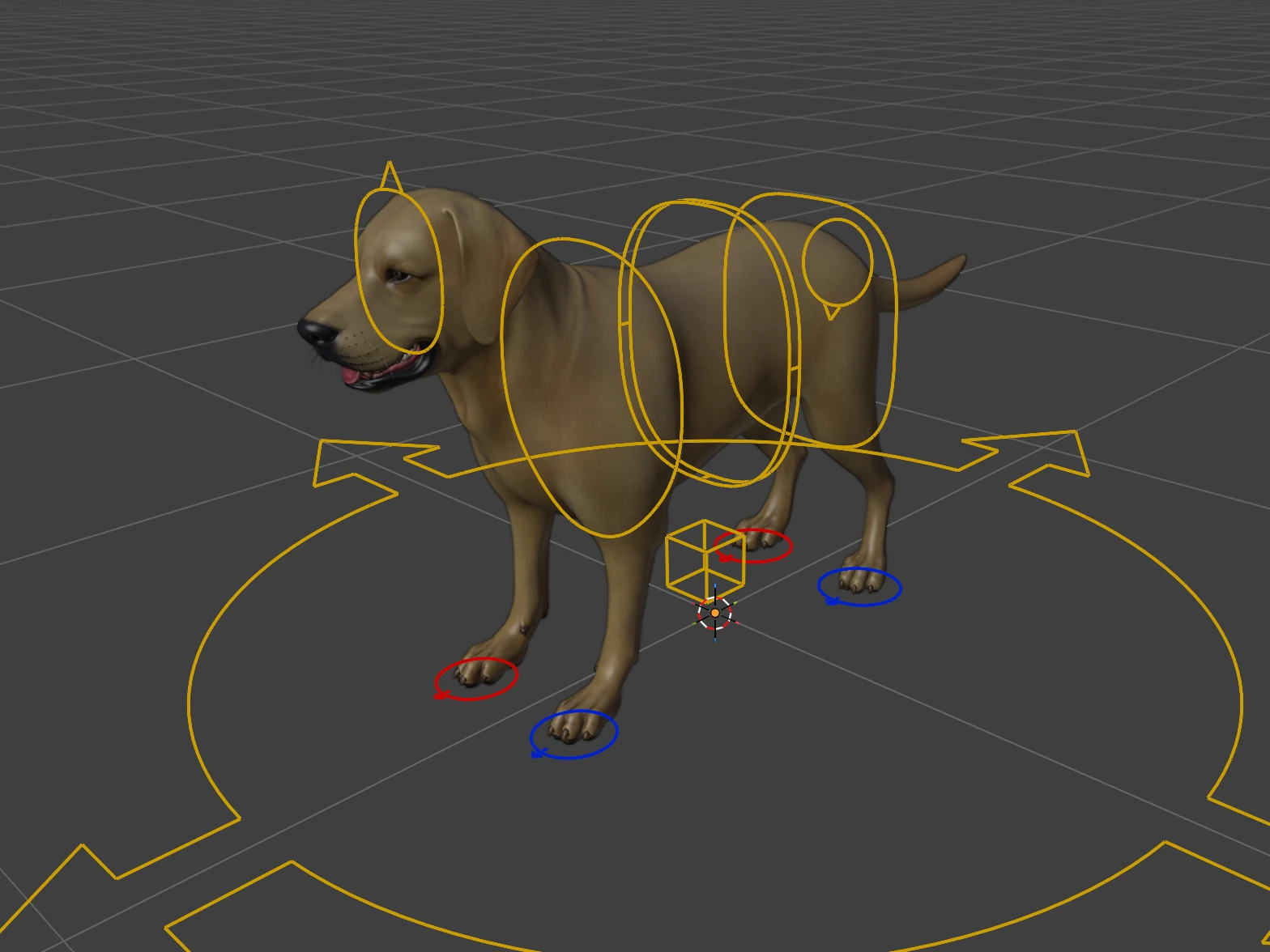
Controls are coloured by side: blue on the animal's left, red on its right, yellow down the middle.
IK / FK
One line per leg, with IK and FK buttons. The pressed one is the leg's current method.
- IK: you move the foot, and the leg bends to reach it. Best for feet that stay on the ground.
- FK: you turn each bone of the leg in turn. Best for a leg swinging through the air.
Press the other button to switch. The leg does not move: the new method's controls are snapped to where the leg is first, and the switch selects the control you now pose it with.
- All legs switches every leg at once.
- Keys decides whether a switch sets keys: Auto keys it when auto-keying is on or the leg already has keys; Always keys it; Never only switches.
- The arrow button at the end of a line selects the control that leg is posed with now.
- In Pose Mode, right-click › Switch IK / FK switches the selected legs.
Select any control on a leg and its settings appear under the table: Stretch, Foot roll, Bank, Toe break, Toe curl and Toe spread.
The IK and FK guide covers switching in the middle of a shot.
Pose tools
| Button | What it does |
|---|---|
| Select limb | Selects every control of the leg you picked a control on. |
| Select all | Selects every control that is showing. |
| Key selected | Keys the selected controls at this frame. |
| Reset selected | Puts the selected controls back to their rest pose. |
| Reset and key | Resets the selected controls and keys them. |
| Reset all | Puts every control back to rest. Asks first. |
Use the I key for animal controls makes I in the viewport key the selected controls with all their settings, such as the IK/FK switch and the foot roll.
The selected control
The last section is named after the selected control and says in one line what it does.
- Follows is the control's parent space: what it moves with. An IK foot can follow the World (stays planted while the body moves), the Body root, the Hips or the Chest. Pick one and the control switches without moving. A control with no choice shows what it is attached to.
- Sliders appear when the control has them: Stretch and Spine stiffness on the body, Rotation follow on the head and tail, Tail curl and Tail side curl on the tail, Global scale on the master, and the face sliders such as Open on the jaw and Blink on the eyelids.
- Rotation follow on the head and tail, and Shoulder auto-follow and Shoulder limb lock on the shoulder blades, have Off, keep pose and On, keep pose buttons, so flipping them does not make the animal jump.
- Rotation shows the control's rotation mode. Change converts it between Euler and quaternion, keeping the pose.
The full list is on the controls page.
Ground
Open Ground and press Snap to ground to put a foot on the ground under it, with the sole flat to the surface. Select a foot to plant just that one, or nothing to plant all four.
Press Next: export.